 Read the Voice
Dictation for seniors: turn spoken words into large text
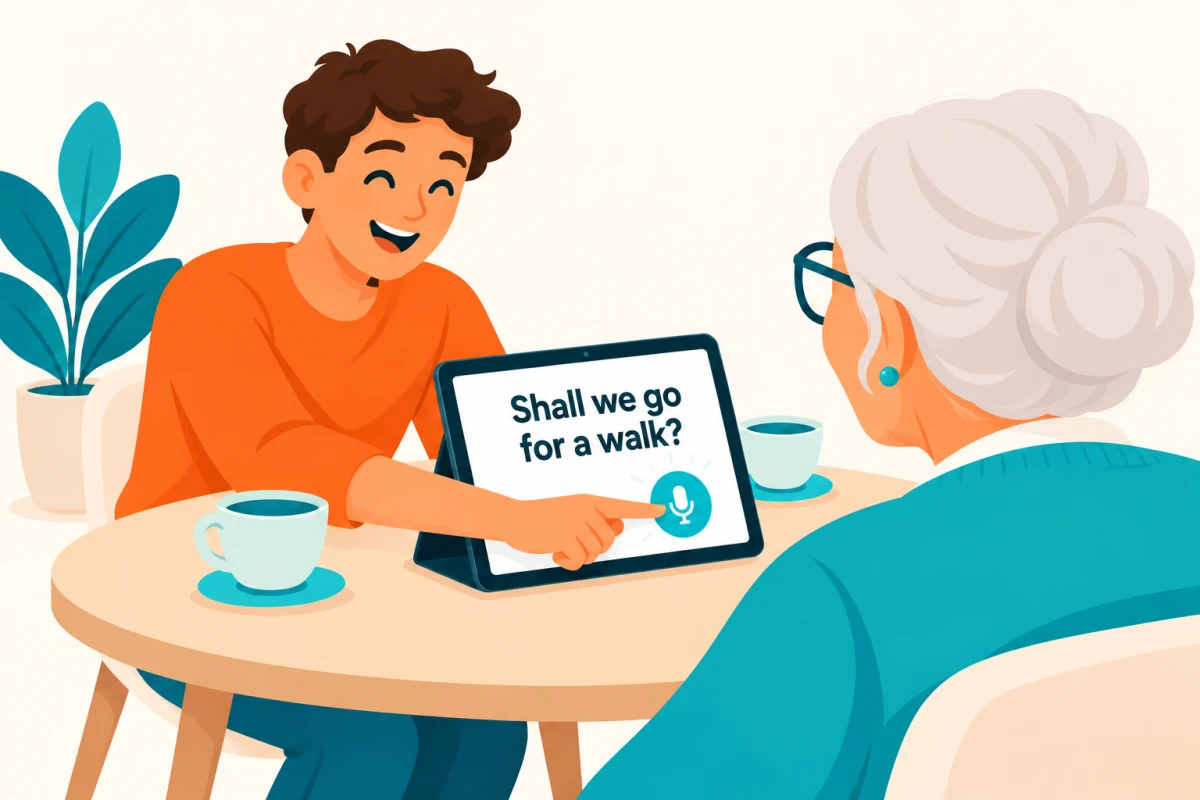
A simple dictation app can turn a spoken sentence into words on a screen. For an older person who wants to read what someone is saying, that can give an everyday conversation a useful second form: speech to text, in a size they can comfortably read.
Read the Voice is designed for this kind of face-to-face exchange on iPhone and iPad. The speaker holds a microphone button, speaks, then releases it. The text appears after processing. The reader can take their time and respond.
Choose the kind of dictation you need
“Dictation” can mean different things. You might want to compose an email without typing, write a document by voice, or show a relative the sentence you just said.
Read the Voice focuses on the last of these: displaying spoken words as readable conversation text. It does not type into your email app or replace a dictation keyboard. If writing inside another app is your goal, look for a dictation feature that supports that task.
Try a first sentence together
- Open Read the Voice and complete the setup, including microphone permission and audio-processing consent.
- Choose the standalone mode for a conversation using one device.
- Hold the microphone button while saying a short sentence, such as “Would you like to go for a walk?”
- Release the button and wait for the words to appear.
- Adjust the text size with the reader, and leave time for their reply.
Keep holding for the entire recording; a quick tap is not the same as recording a sentence. If the transcription gets a word wrong, say that part again and check the result together.
Make the text large enough to read
A larger screen is useful only if it is comfortable for the person using it. Ask them to choose the text size and where the device should stand. Start with an ordinary sentence to see how the words fit.
Our speech-to-large-text guide walks through setting up an iPad as the reader’s screen. An iPhone can also work for a simple exchange without another device.
Let the family speak from their own phones
When several relatives join, Tandem connects nearby iPhones to one shared iPad. The reader keeps the iPad in front of them while speakers use their own phones. Guests do not need their own accounts or minute packs; the receiving account provides the minutes.
Know what to expect
Read the Voice needs internet access for transcription and sends audio through its server to OpenAI with consent. It displays text after release and processing, rather than continuously while you speak. Recordings use minutes, including pauses while holding the microphone; processing time does not.
The simple pricing reference is $1.99 USD per hour of recorded audio, without a subscription. Check the app for the exact local price and see how recording minutes work.
Begin with one useful sentence. The aim is to find a way of talking and reading that feels comfortable to both people.